In this article:
- How are route lines drawn?
- How to remove the incorrect line
- Scenario 1: Travel Tracker step (white dot) in the wrong location
- Scenario 2: The step you added has the wrong time, date or location
Sometimes, you'll see a route line on your map that is not exactly how you want it. These lines may change when you edit a step or delete a Travel Tracker step (small white dot), but you can’t edit a route line directly. To correct your route, it is helpful to understand how route lines work.
How are route lines drawn?
Your map connects every location in chronological order to determine your route line. There are two types of locations on your map:
- Steps: these are the places you choose add to your trip timeline. Their time & date and location can be edited manually.
- Travel Tracker steps: these are the small, white dots added automatically when tracking your trip in the app. You cannot move these; only delete them.
When your route line is incorrect, this is the result of one or more wrong steps or Travel Tracker steps. Either;
- an incorrect Travel Tracker step was accidentally recorded on the map, or;
- there is something wrong with the time & date or the location of a step.
When you see wrong routes or flight lines on your map, it is important to check the chronological order of your steps and Travel Tracker steps.
How to remove the incorrect line
When a part of your route line looks wrong, please zoom in on the line to check what has caused this part of the route line to be drawn incorrectly. Is the line drawn between two steps, two white dots, or one of each?
Please have a look at the 2 common scenarios below for instructions on how to fix the issue.
Scenario 1: Travel Tracker step (white dot) in the wrong location
Travel Tracker steps are added automatically. Occasionally, your device might track an incorrect location on your map. If a white dot is added in the wrong location, the map will draw lines to and from that location because the dot sits between your other steps chronologically.
Example
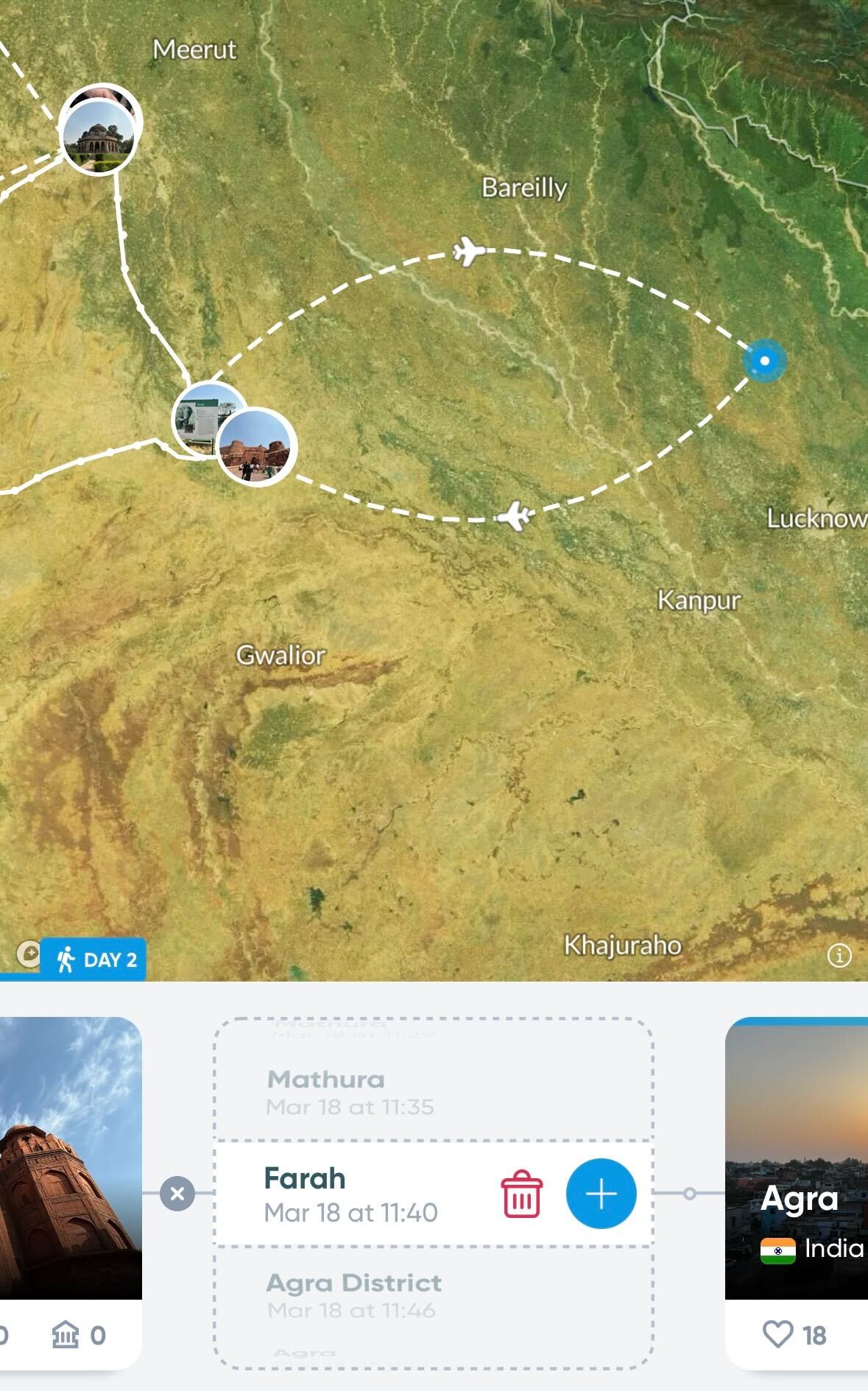
If you see a small white dot at the end of the wrong line:
Tap the white dot
If the location is wrong, tap the trash bin icon to delete it
If the location is correct, do not deleted it. Instead, continue to Scenario 2 belowIf you find it difficult to select the correct dot on your phone, please sign in on a computer via polarsteps.com, zoom in, and delete it there
Scenario 2: A step has the wrong time and date or location
If the time and date or the location of a step don't match when & where you actually visited, the rest of your route will connect to it incorrectly and result in a faulty line.
Example
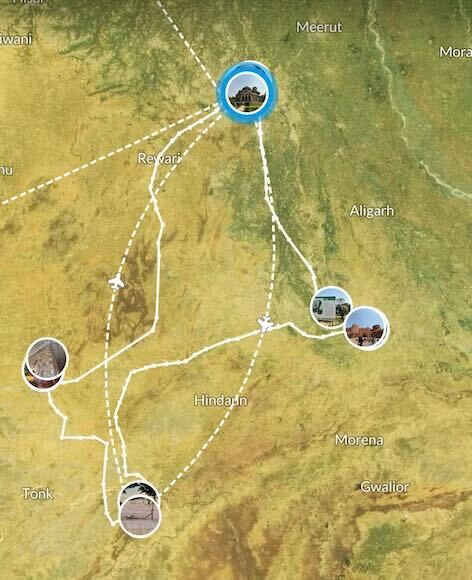
Change the step so that it matches the actual time and place of your visit.
If the time and date of the step are wrong:
- Open the step
- Tap 'Edit step'
- Select the date or time
- Set the correct time
- Tap 'Publish' to save your changes
If the location of the step is wrong:
- Open the step
- Tap 'Edit step'
- Tap on the blue pencil icon
- Move the location selector to the right place
- Tap 'Select this location'
- Tap 'Publish' to save your changes
Note: The route line updates as soon as you save the step with correct information.
Contact us with any doubts!
If you are still unsure why an incorrect line has appeared on your map, we’d love to take a closer look with you! Please send us an email through support.polarsteps.com/contact with the following information:
- Your trip link
- A screenshot of the incorrect route line