If you'd like to create a panorama photo that spans two pages, you'll need to edit the picture yourself outside the app, then upload the adjusted images and drag and drop them onto the left and right pages.
Crop your panorama photo into two parts: one from the left edge to the center, and one from the center to the right edge. When you place these two photos next to each other on two pages, they'll appear as one continuous photo across the spread. It is good to note that this looks best on lay-flat pages.
The size of a Travel Book is 29.7 cm wide and 21 cm high. So, if you'd like your panorama to sit next to a page with step text, use the following ratios:
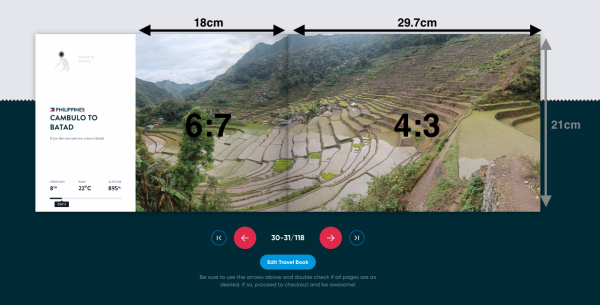
Panorama next to a step text page (step page + full page)
- Place the step page on the left side.
- Crop your panorama photo twice:
- For the step page on the left, use an aspect ratio of 6:7 (width:height).
- For the full page on the right, use an aspect ratio of 4:3 (width:height).
Panorama across two full pages (full page + full page)
- Crop the same way as above, but use a 4:3 ratio for both the left page and the right page.
Photos with a resolution of 3500 pixels (in height or width) are the most optimal for printing. *